
Get started with CTAS Work in 15 minutes: a step-by-step guide
3 min read
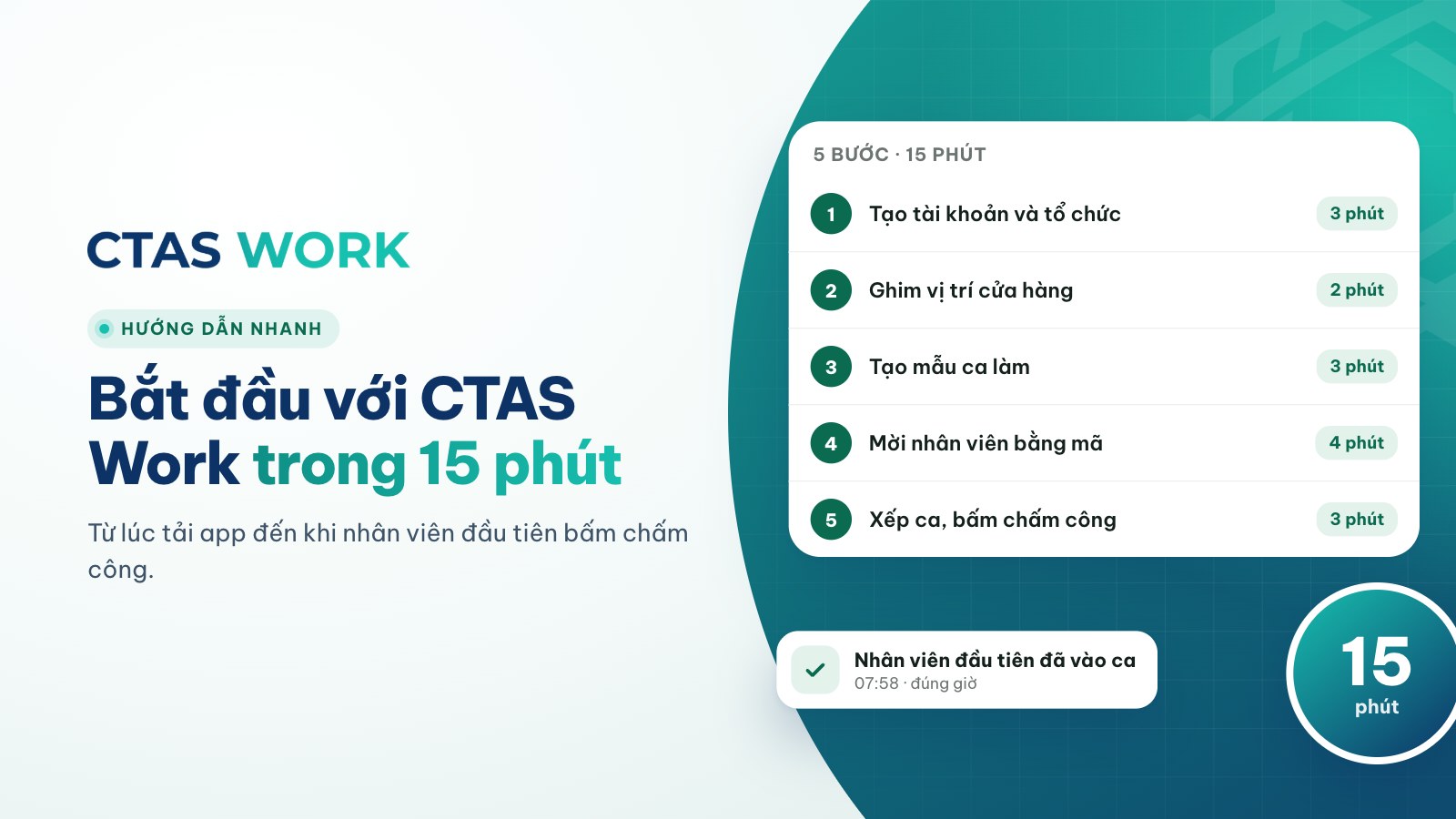
This guide takes you from nothing to your first staff member clocking in on CTAS Work. You need about 15 minutes and a phone or computer.
Step 1 — Create an account and organization (3 minutes)
- Download the CTAS Work app from the App Store (iPhone, iPad) or Google Play (Android), or open work.ctas.vn in a browser.
- Sign up for a CTAS account with your email and verify it with the 6-digit code we send.
- Choose Create organization and enter your business name. You become its first administrator.
Step 2 — Pin your workplace (2 minutes)
In the workplace settings, search for your store’s address, drag the pin to the exact spot on the map and choose a clock-in radius. If the store is inside a building GPS can drift — then also turn on Wi-Fi checks (in every plan): staff just connect to the store Wi-Fi to clock in.
Tip: several branches? Create each as a department/store, each with its own workplace, Wi-Fi and holidays.
Step 3 — Create shift templates (3 minutes)
Create the shifts you use most, such as “Morning 7:00–15:00” and “Evening 15:00–23:00”. Each template has its own break and can carry its own rate if you pay per shift.
Step 4 — Invite your team (4 minutes)
- Add staff with their name, phone number or email, and set their department and role (staff, team lead, manager).
- Send each person an activation code. They install the app, enter the code and land in your organization.
- Assign a pay template to each person now or later — payroll can be configured any time before the first close.
Step 5 — Build the first week and clock in (3 minutes)
Open the schedule, select several days at once and assign shifts to each person. From next week, just copy the week and adjust what changed. Staff open the app and clock in when they arrive — that’s it.
After the first week
- Set up a leave policy so leave accrues every month.
- Configure pay templates: monthly, daily or hourly pay, allowances, insurance and tax.
- Turn on notification escalation so waiting requests go up the chain.
Need help? Contact the CTAS team — we reply by email, phone or Zalo within one business day.
Related articles
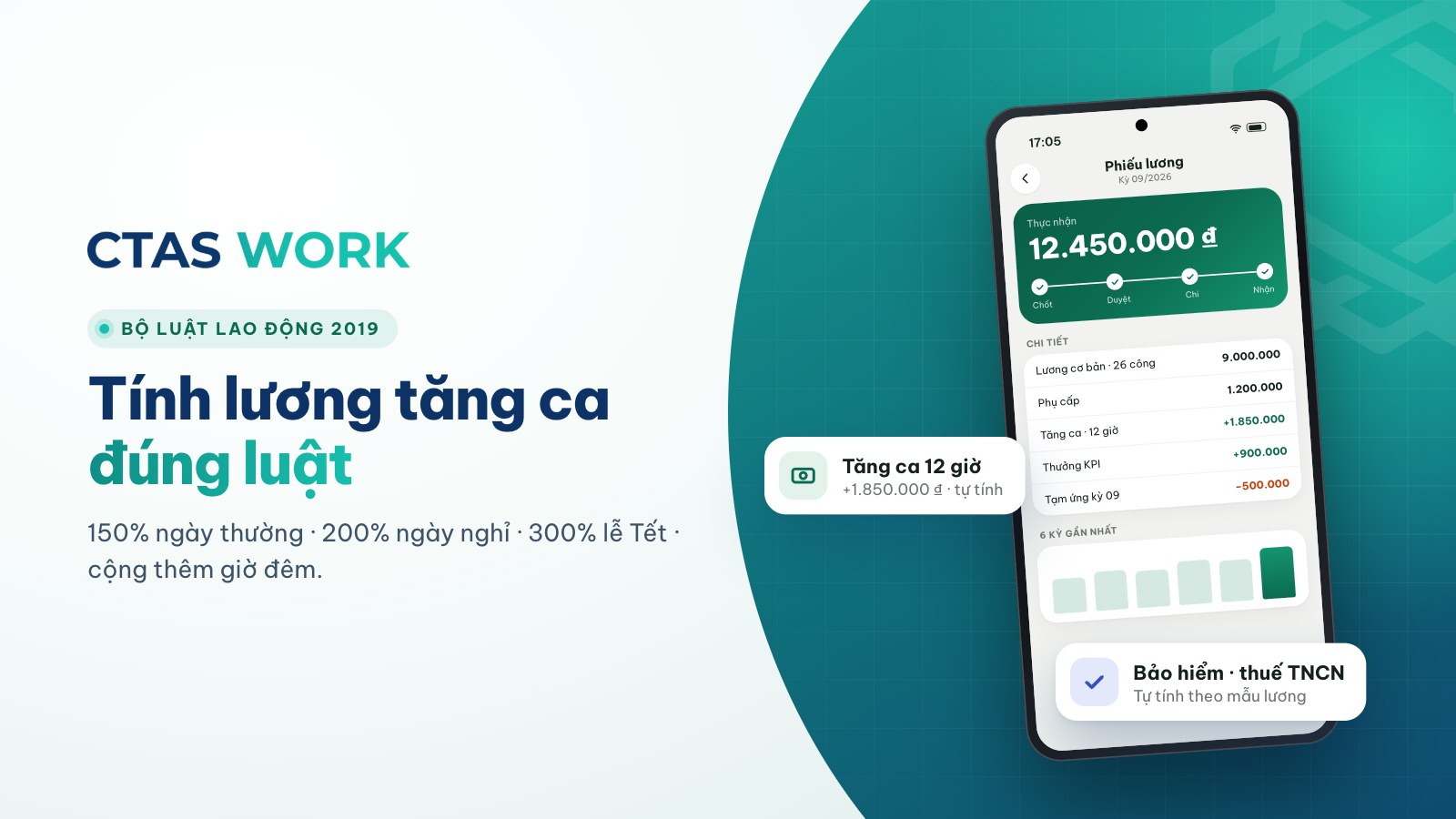
Overtime pay under Vietnam's 2019 Labour Code, with a worked example
150% on weekdays, 200% on days off, 300% on holidays, plus 30% and 20% at night — each rate explained and calculated for a barista.
4 min read
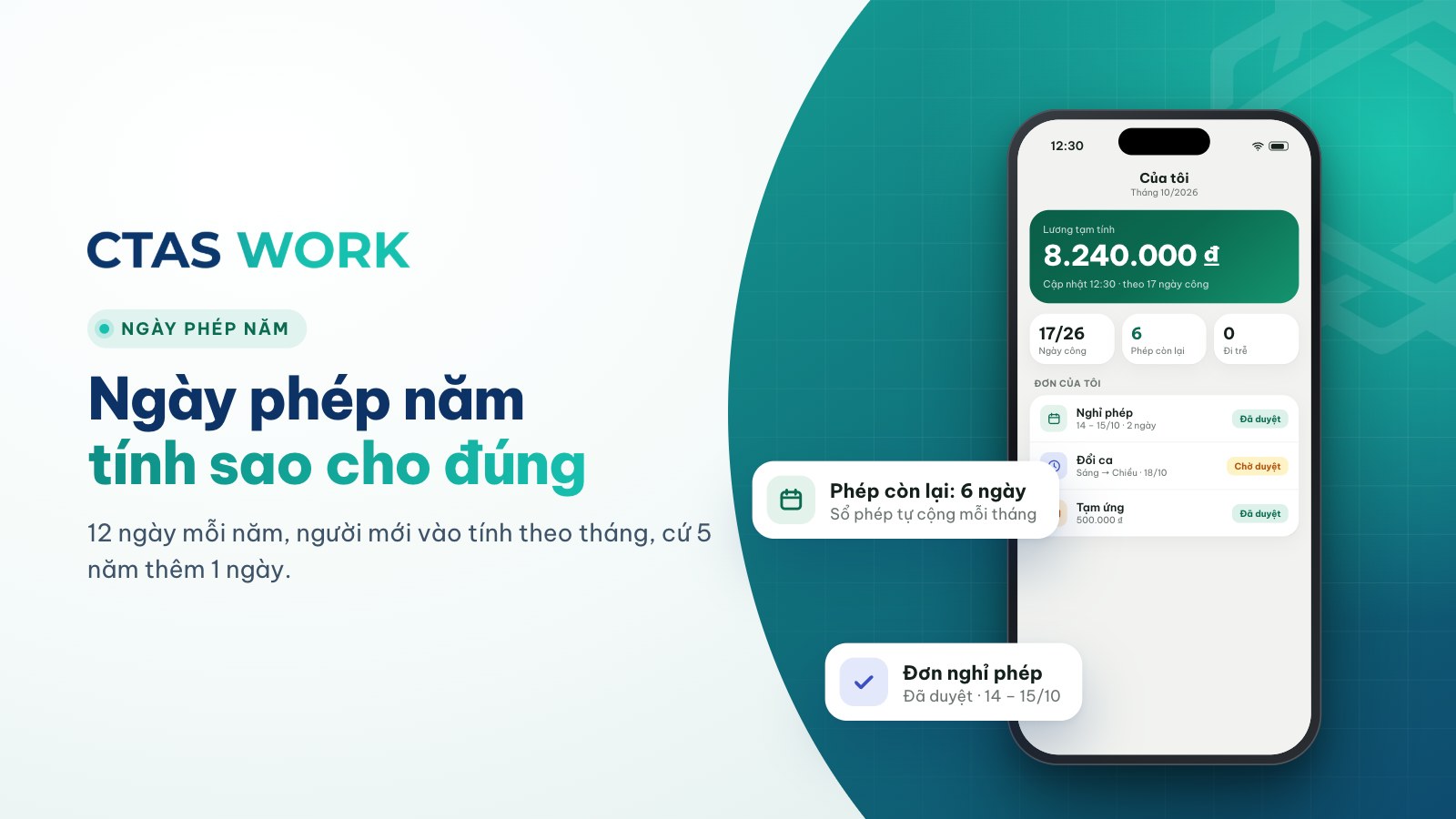
How to calculate annual leave: 12 days, part-year staff and seniority
Days per year, new starters, one extra day every 5 years, unused leave when someone leaves — plus three common shop situations.
4 min read
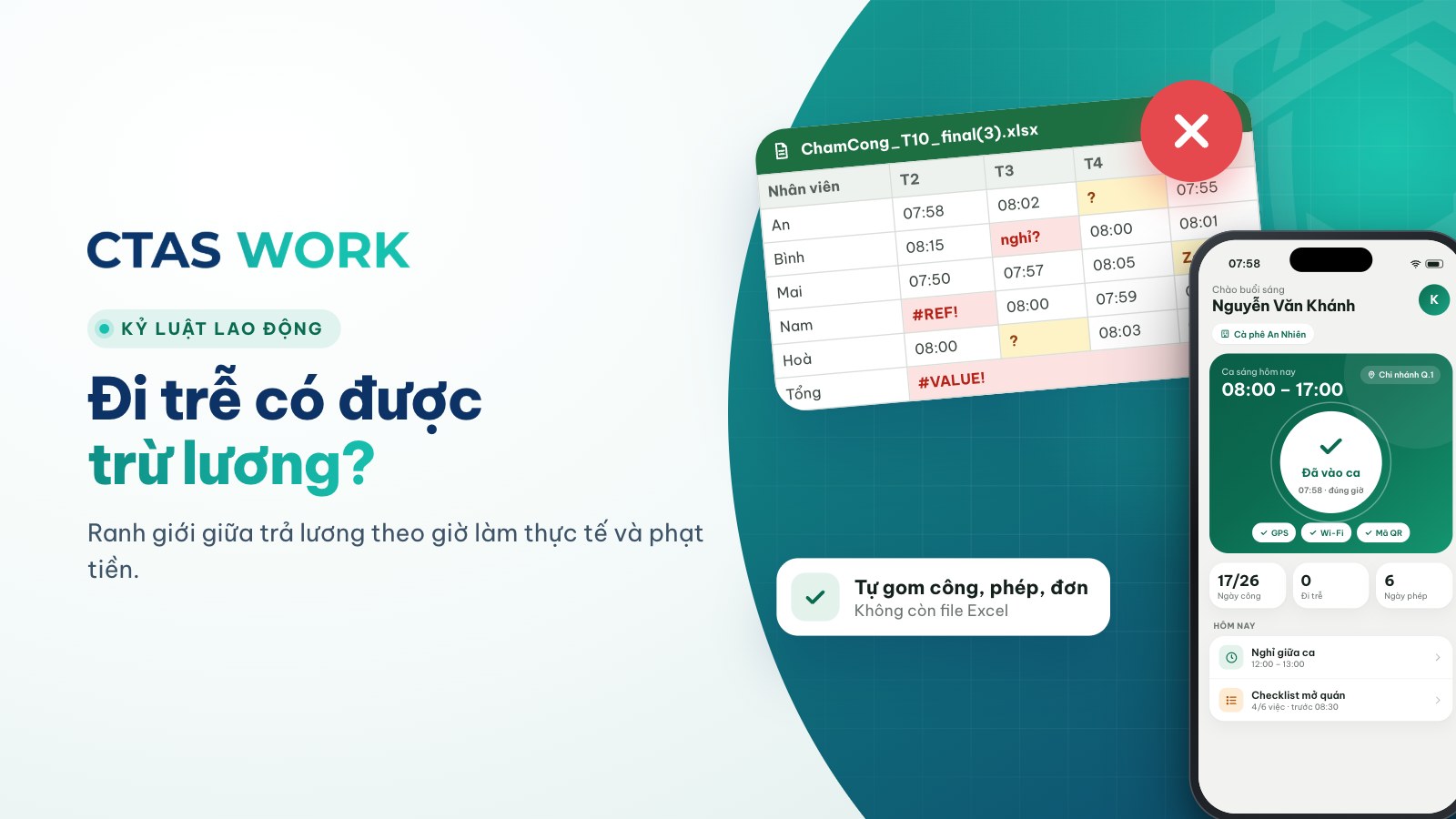
Can you dock pay for lateness? Paying for time worked vs. fining
The law bans fines and pay cuts as discipline. Is “15 minutes late, 50,000 VND off” wrong? How to handle lateness legally.
4 min read