
Track daily spending without giving up: send one message, let AI log it
4 min read
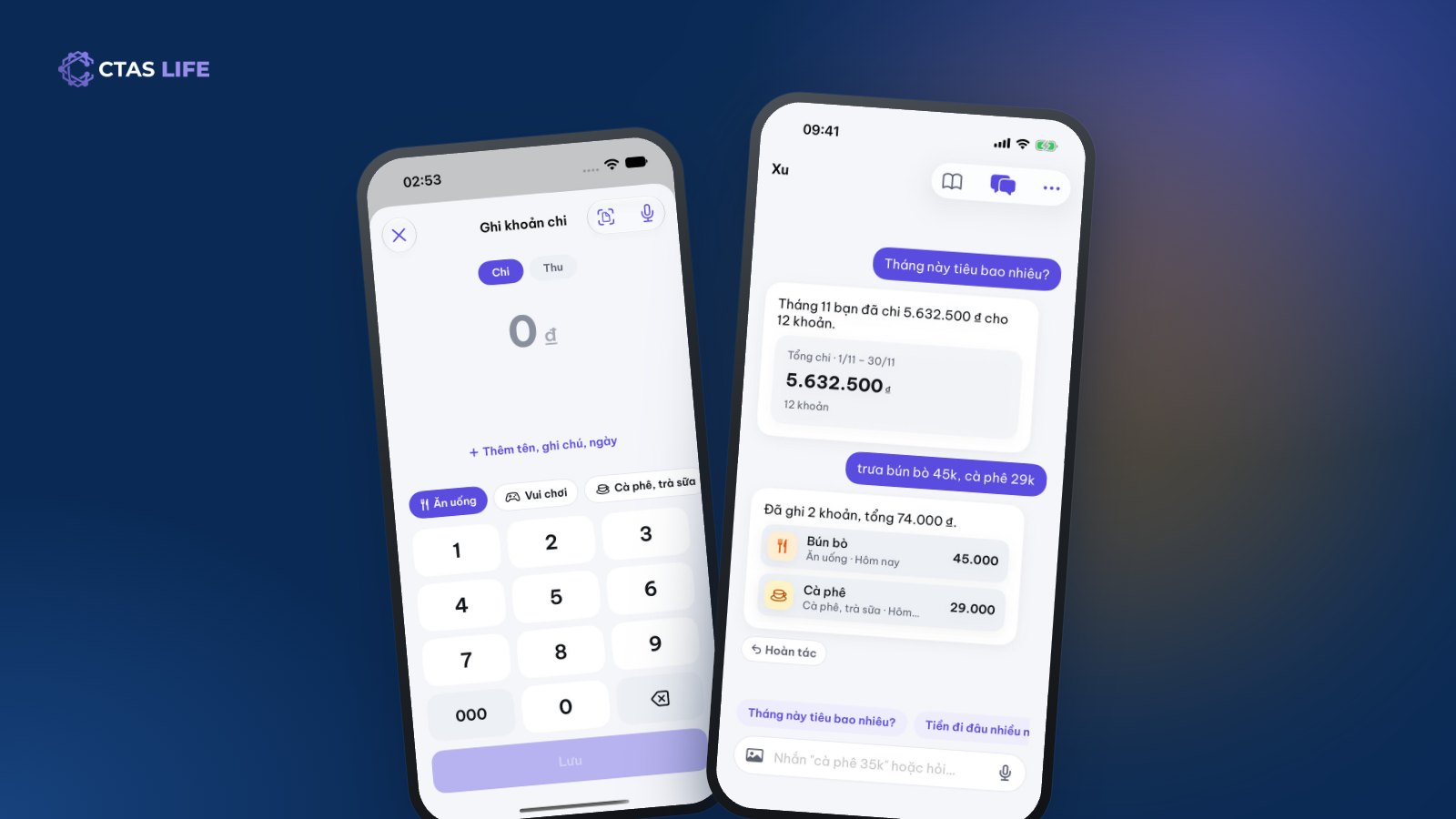
Everyone has promised themselves "this month I will track my spending". The first week goes well, the second week a few meals slip, by the third week it has stopped. The reason is rarely laziness: every entry means opening a book, picking a category, typing a number, and nobody wants that effort for a coffee or a parking fee. The only way to keep the habit is to make logging quicker than forgetting. Here is how to do that with Spending in CTAS Life.
Why track spending every day?
- Know where the money goes. Most of us guess wrong about how much goes on food, coffee and online shopping. The real number is often a surprise.
- Set limits that make sense. Once you know last month’s food came to 3 million VND, you can aim for 2.5 million this month.
- Less month-end worry. Seeing "2.3 million left for 27 days" lets you adjust early, instead of being caught out when the account runs dry.
Log an expense in a few taps
Open CTAS Life › Spending › the + button. Type the amount on the number pad, pick a category (Food, Coffee & tea, Transport & fuel, Rent…) and tap Save. A name, a note and the date are optional. Income such as salary or a bonus goes in the same place, so you see money in and money out.
Costs that repeat every month — rent, internet, school fees — can be set as recurring once, and Spending logs them each period.
Too lazy to tap? Message Xu
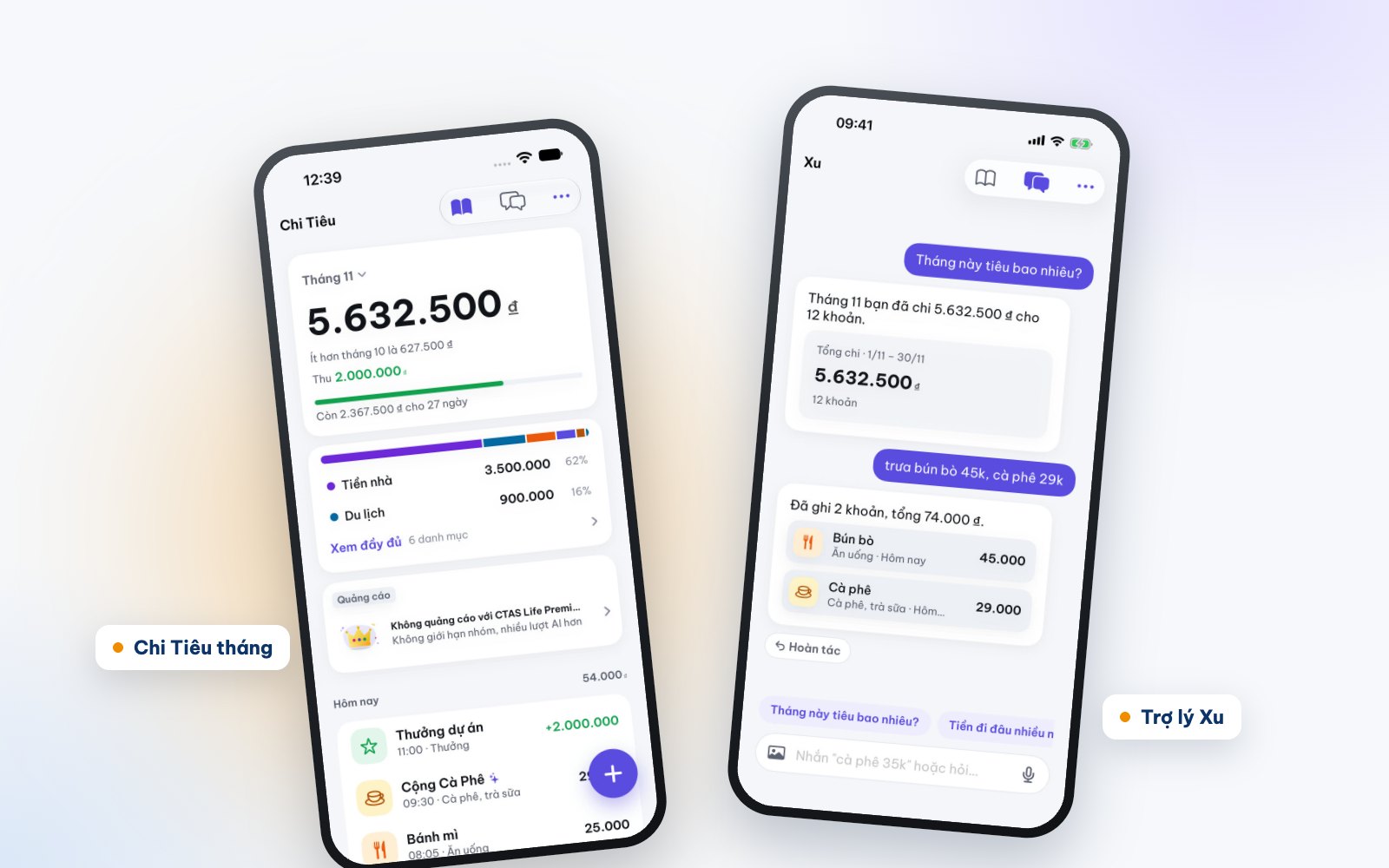
Xu is the AI assistant in Spending. Write to it the way you would text a friend: "lunch noodles 45k, coffee 29k", and Xu splits it into two expenses, picks the right categories and logs them. You can also ask:
- "How much did I spend this month?"
- "Where does most of my money go?"
- "How much went on coffee this week?"
The numbers in an answer are computed exactly by CTAS’s server from your own book; AI only puts them into words, so it cannot make figures up. Each Xu reply uses 1 credit (2 in Detailed mode), and a failed request costs nothing. Every account gets 30 free credits a month.
Choose Xu’s voice
Xu has four voices: Polite, Cute, Best friend and Strict. Strict grumbles when you splash out ("your wallet is sighing"), but never about spending on health, study, children or family occasions. Change the voice and Xu’s icon in the assistant settings.
See where this month’s money went
Spending opens on the current month: total spent, compared with last month, total income, a limit bar showing "how much is left for how many days", and each category’s share. Want another period? Choose a week, a month or any date range. Expenses are grouped by day, so looking back over a week takes seconds. Manual entries, stats and file export are free and unlimited.
Shared costs with friends log themselves
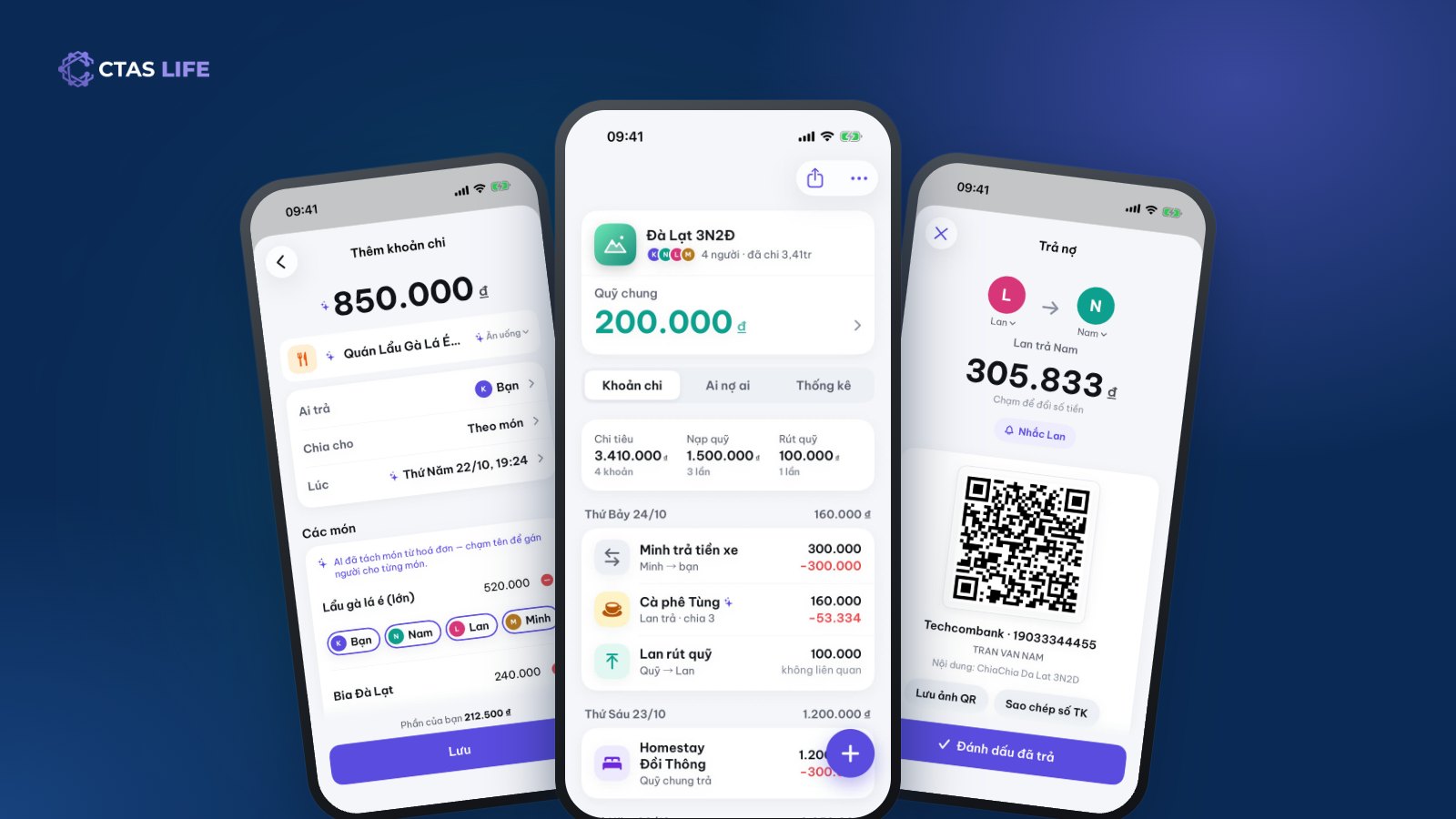
If you use TriTri to split group costs, your share of each shared expense appears in Spending on its own. A 850,000 VND hotpot split four ways puts your share in your book, not the whole bill — and it is not counted twice when you transfer money back to whoever paid.
Four tips so you don’t give up
- Log right after you pay. A one-line message to Xu takes less time than remembering it all in the evening.
- Don’t over-split categories. The built-in ones are enough for most people.
- Set a monthly limit and glance at the limit bar once a week.
- It doesn’t have to be perfect. Missed one? Fine — log the next. A roughly right number beats no number.
Start tracking with CTAS Life
Spending is part of CTAS Life, free on the App Store and Google Play. On your phone? Tap get CTAS Life. For more AI, see Premium and credit packs on the CTAS Life page.
Related articles
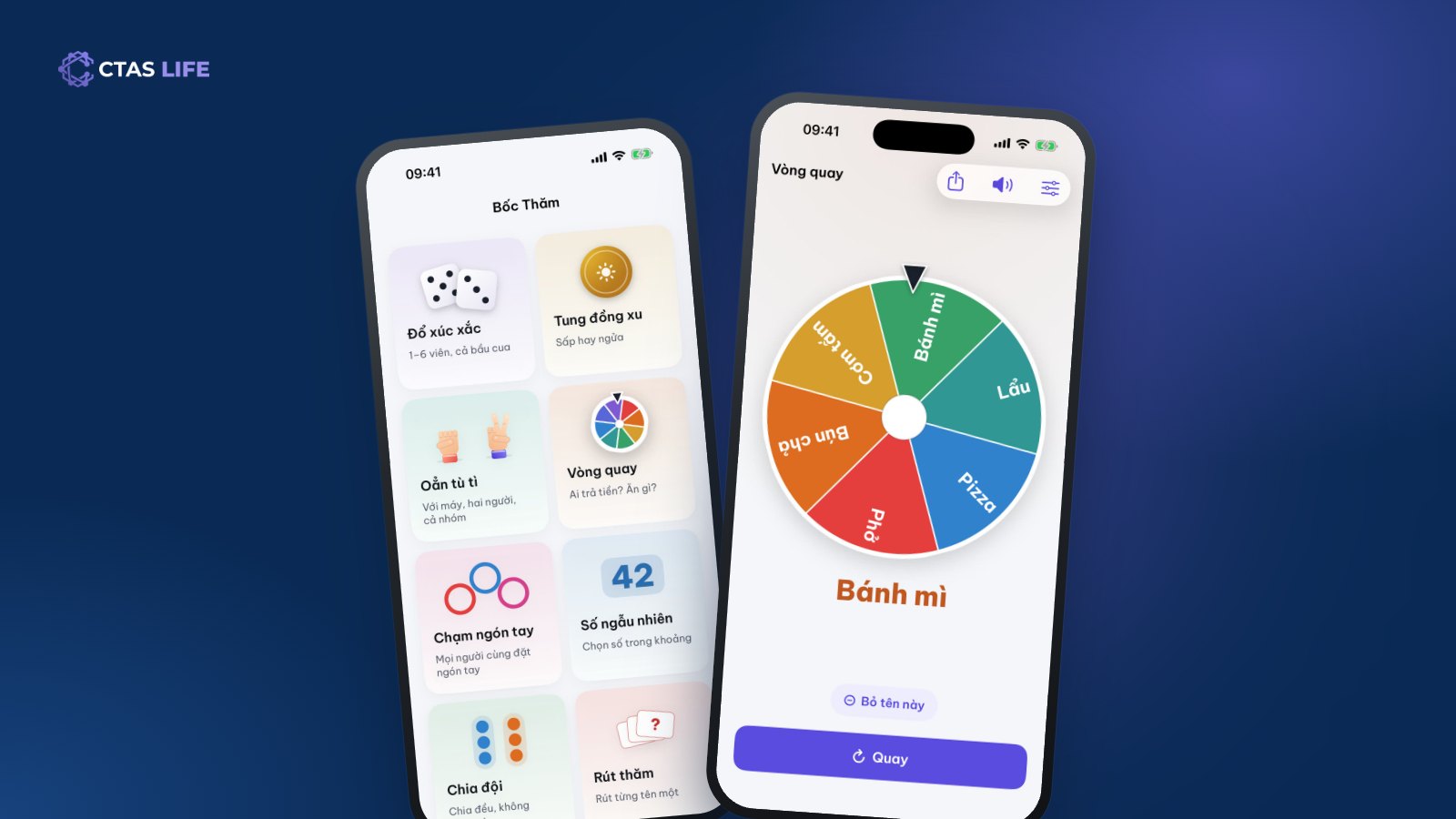
Split teams or pick who pays: 8 ways to decide at random as a group
Football needs two teams, nobody can pick a restaurant, nobody wants the dishes. The eight lucky draws in CTAS Life — wheel, dice, coin, finger pick, team split — and which one fits when.
3 min read
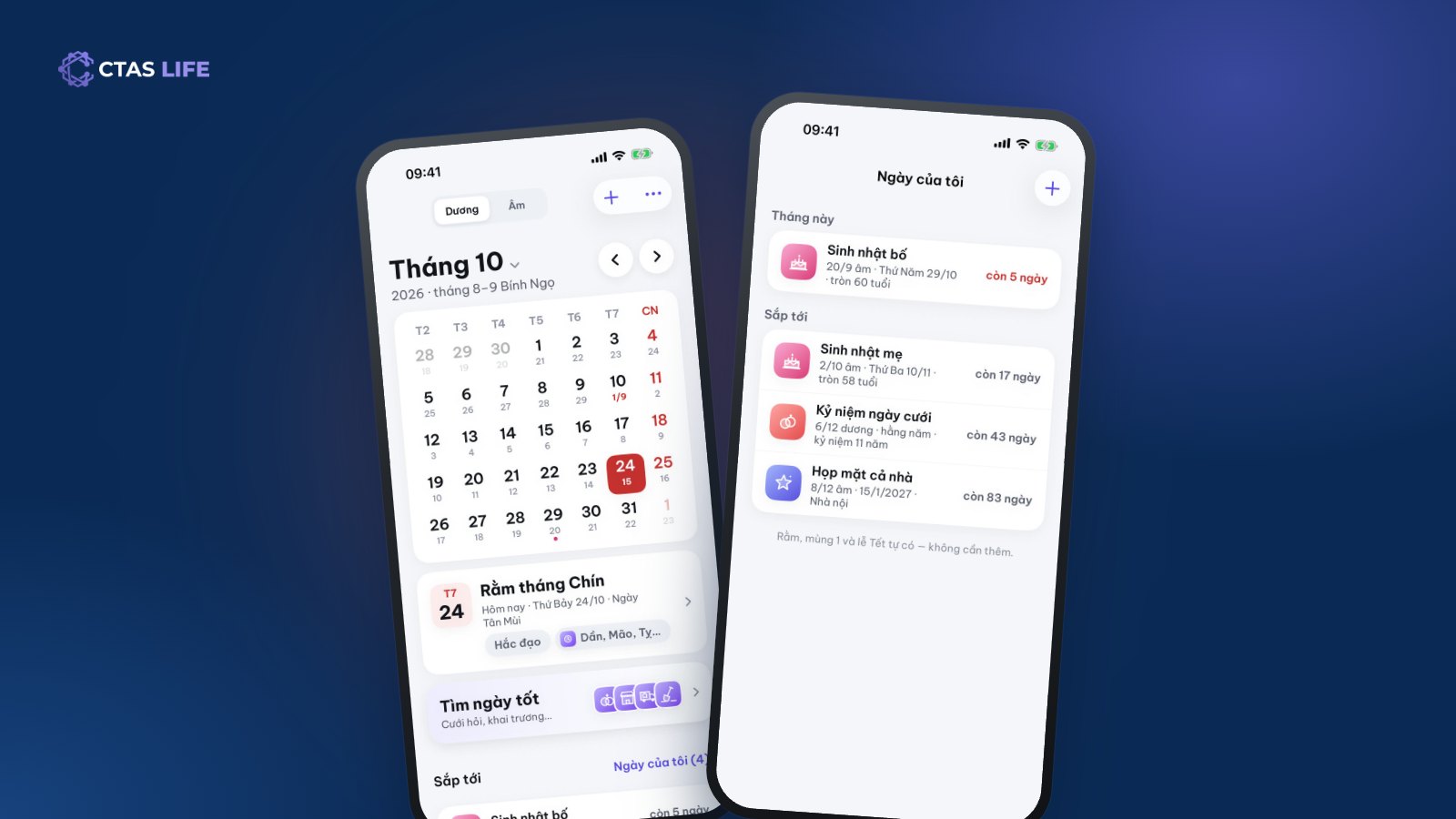
Never miss your parents’ lunar birthdays and family dates with the Lunar Calendar
A lunar birthday lands on a different solar date every year, which makes it easy to forget. How to save it once and be reminded on the right day for good, share a date book with the family and find good days for a wedding.
4 min read
How to split costs on a group trip: fair for everyone, awkward for no one
A shared fund or log-as-you-go? Equal shares or by item? A guide to splitting a group trip from planning to the final transfers, with a three-day Đà Lạt trip as the example.
4 min read